Cloud PC option is available to allow you to connect to your work PC using your home computer. This has the advantage that you can essentially work as though you were sat in front of your work PC. You would use AccuRx Video consultations through your phone for the video consultations.
Preparation and Prerequisites
- You need computer capable of using Remote Desktop Protocol (RDP).
- Only access the Cloud PC site detailed below with Internet Explorer – Not Microsoft Edge, Google Chrome, Firefox, Safari – they will not work. When logging in to the Cloud PC tool you may be asked to enable a plug-in – ensure you enable this by responding positively to the notification.
- Windows 8/10 Pro will have this built in
- On home versions its not officially available, but it is possible to find ways around – not easy and probably not allowed.
- On Mac you can download RDP but I’m not a Mac fan so no idea if it works with CloudPC
- Linux – possible, probably – but way too geeky for most people.
- You will need to have your username and work PC assigned by HIS to allow the connection.
- A smart card will allow EPS etc. However, as we’ve said elsewhere given no one is using your work PC borrow the Keyboard with the smart card reader built in for the time being if home working
- Your Work PC needs to stay on all the time.
Getting Connected
To use cloud PC you first have to go to Cloud PC website using internet explorer: https://cloudpc.northstaffs.nhs.uk/
Some people may confuse Edge for internet explorer. To avoid confusion you can: Hold the Windows Key and Whilst holding it press R. Then in the box that appears type iexplore.exe. Better still cut and paste this iexplore.exe https://cloudpc.northstaffs.nhs.uk/ into that box. Then press enter.
In the box labelled Domain\username you have to put ‘ns\xxxxxx’ where xxxxxx is your username you use to log onto windows with (your CoIN username)
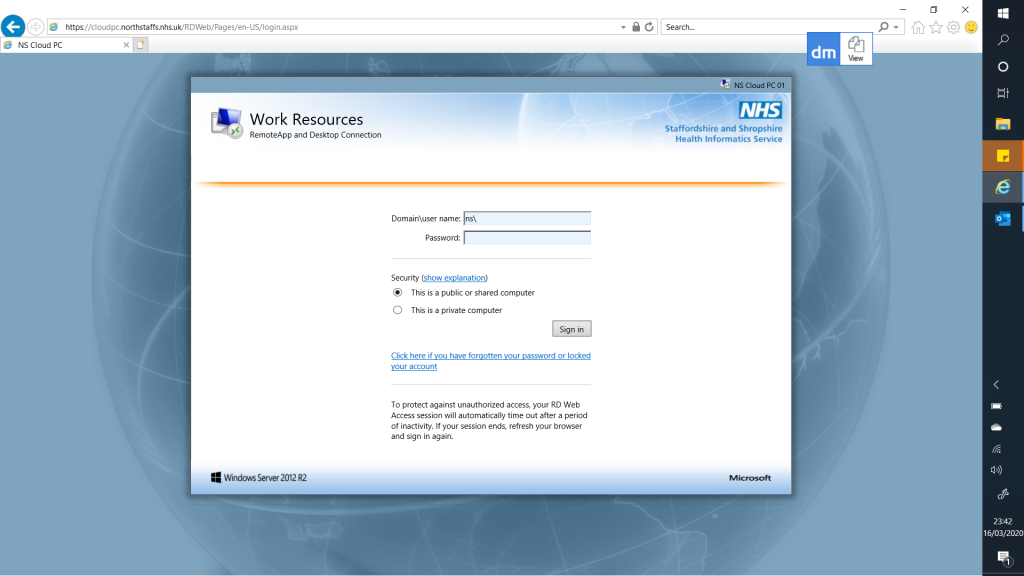
Enter your password. Select private computer and click sign in.
Once logged on you will see a window with the option to ‘Connect to a remote PC’ – select that option.
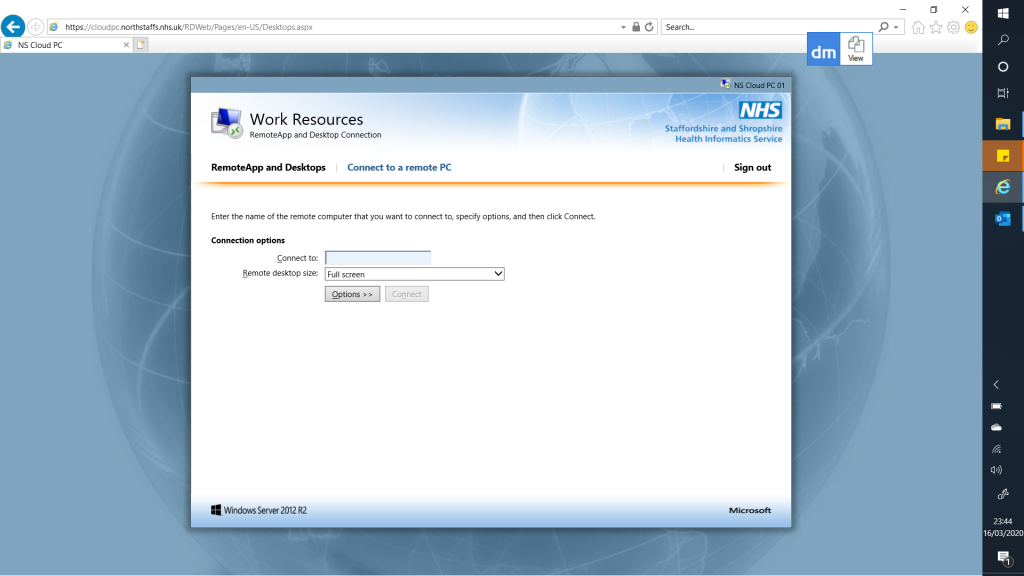
In the ‘Connect to’ box enter the name of the computer you are going to connect to. This will start with something like HIS…. or B……
Also click options and select the ‘Supported Plug and Play Devices’ – this is needed for the smart card reader to work from home.
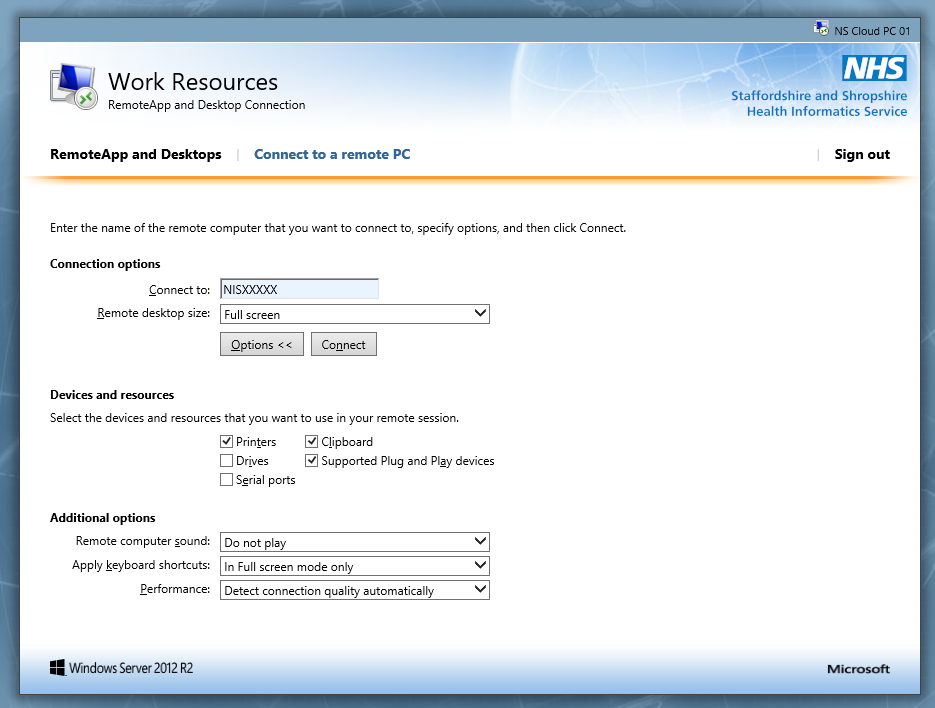
Then click Connect
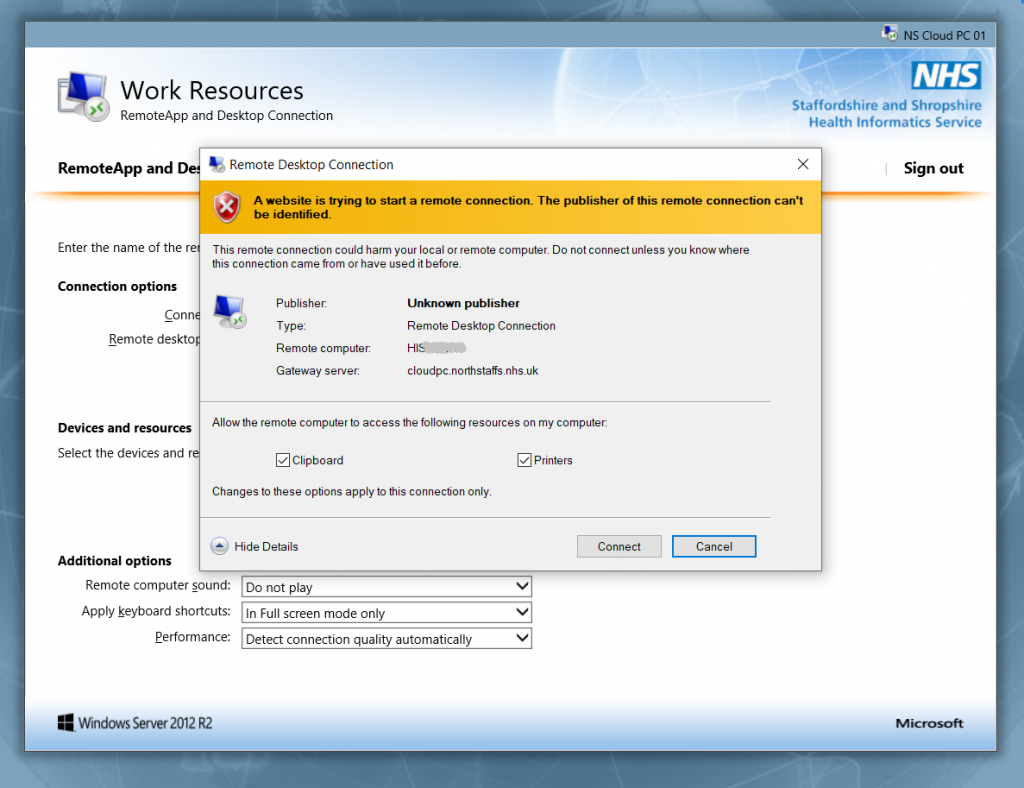
And click Connect again
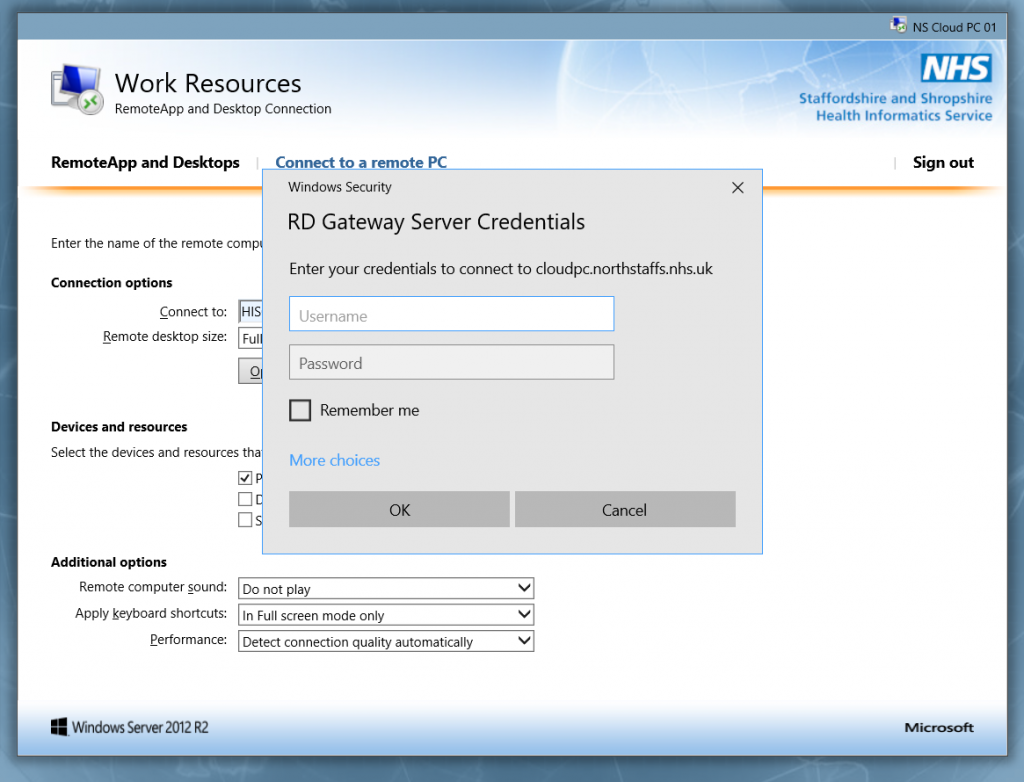
Then enter your coin details again (NS\xxxxxx) and your Password and click OK.
The scrolling bar should indicate that you computer is connecting to your work computer:
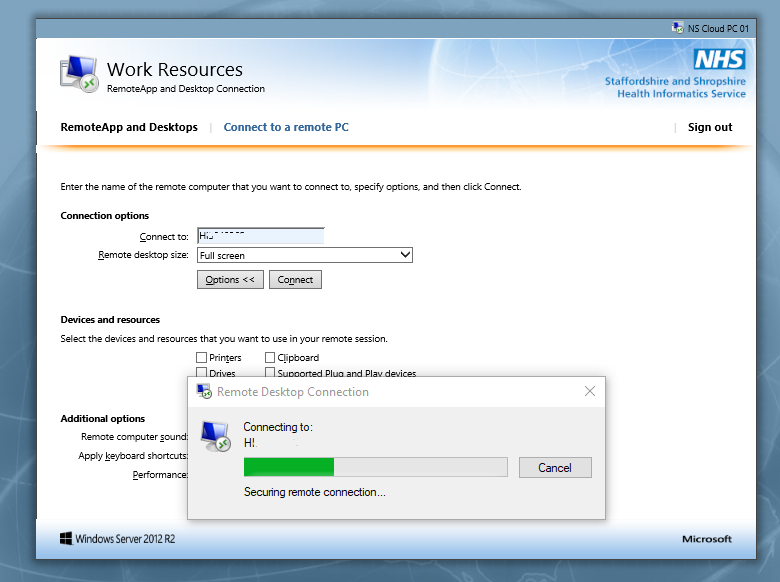
Once that is done you should see your Desktop as though you are working on your PC at work.
If you have a smart card reader installed on your PC this should allow transmission of Smart Card Credentials.
You can use AccuRX for Video consults as it uses your phone to make the call.