In some circumstances you may need to manually configure the gateway etc. These instructions may also work for chromebooks etc – but I am not sure. It’s a very similar process to on a Apple Mac.
02/04/2020 – Also CSU have now sent us this guide that helps with the same process below but also includes a step to save the settings for ease of future use.
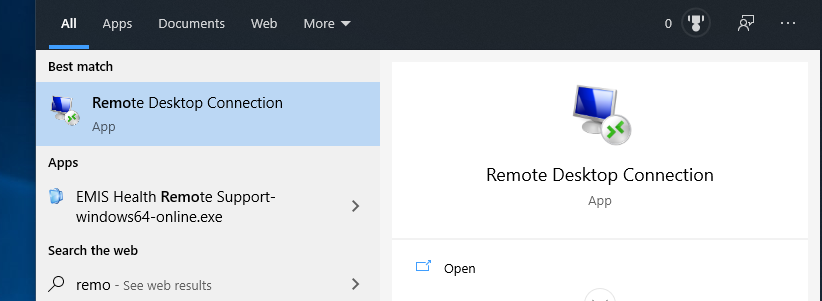
1. Launch Remote Desktop Connection
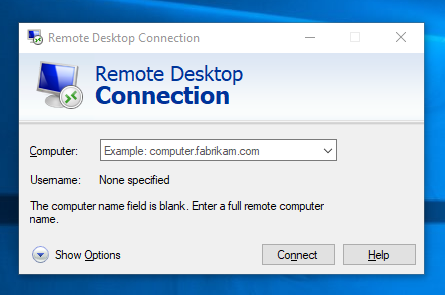
2. Click the Show Options button at the bottom
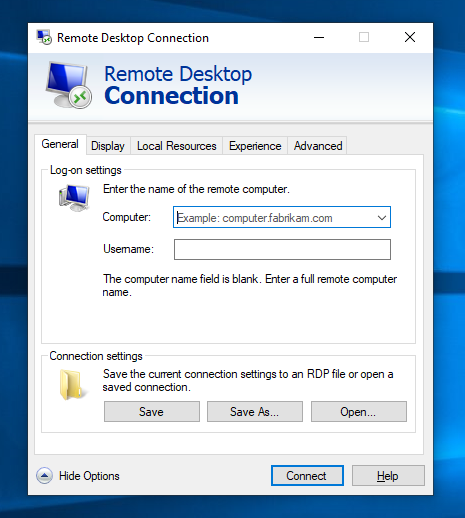
3. Enter you Computer details
In the Computer box put you HISxxxx or BXXXX number
In the username put ns\xxxxx – where xxxx is your CoIN username (what you log onto Windows with at work)
4. Configure the Remote Gateway
Select the advanced tab at the top. Then Click Settings.
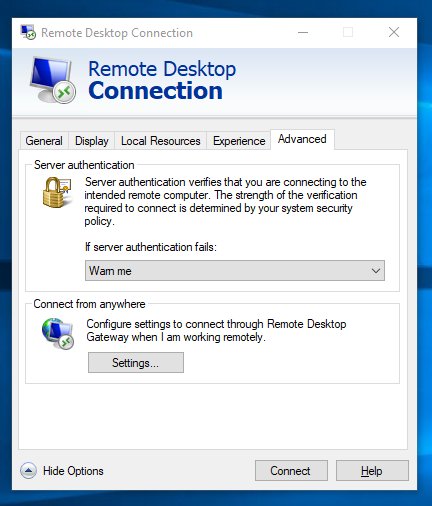
Then select the “Use these RD Gateway server settings” button.
Enter cloudpc.northstaffs.nhs.uk in the server name box.
Select the ‘use RD gateway credentials for the remote computer.
Leave the other settings as they are.
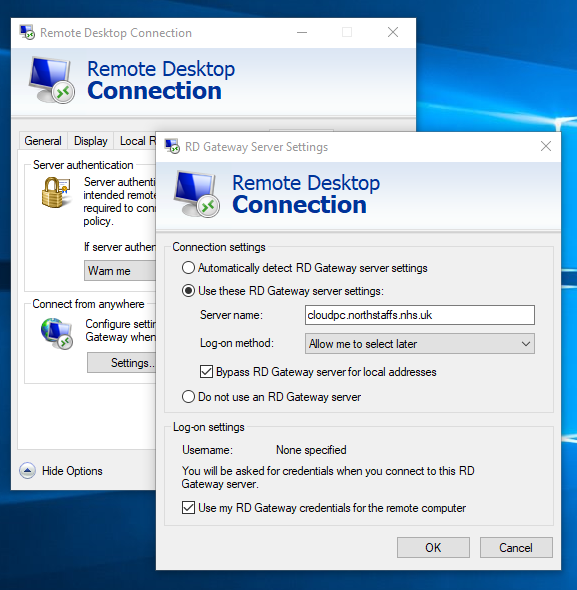
Click OK, then click Connect.
On the next screen type in your password

Click OK.
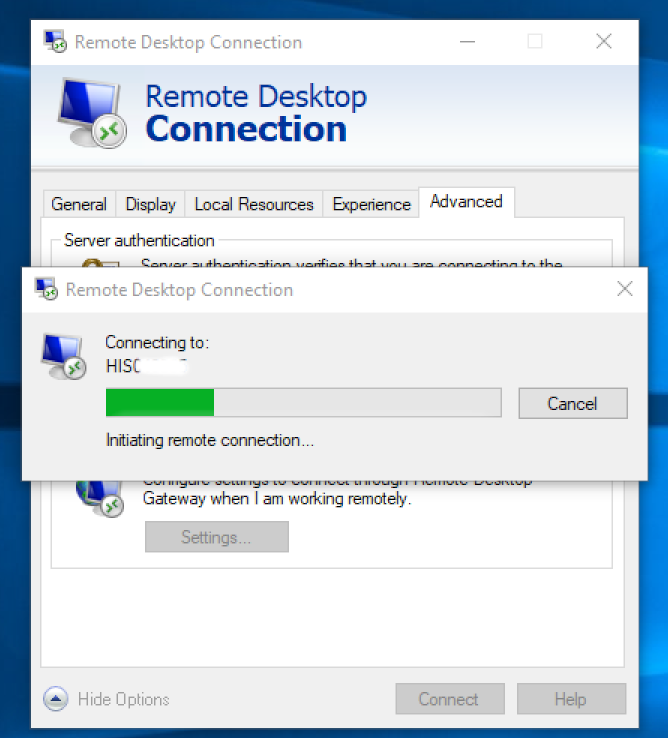
After a while you should be connected to you work PC. A tab at the top as shown below will indicate that.

OK. hope that Helps.
Comment below if anything isn’t clear.