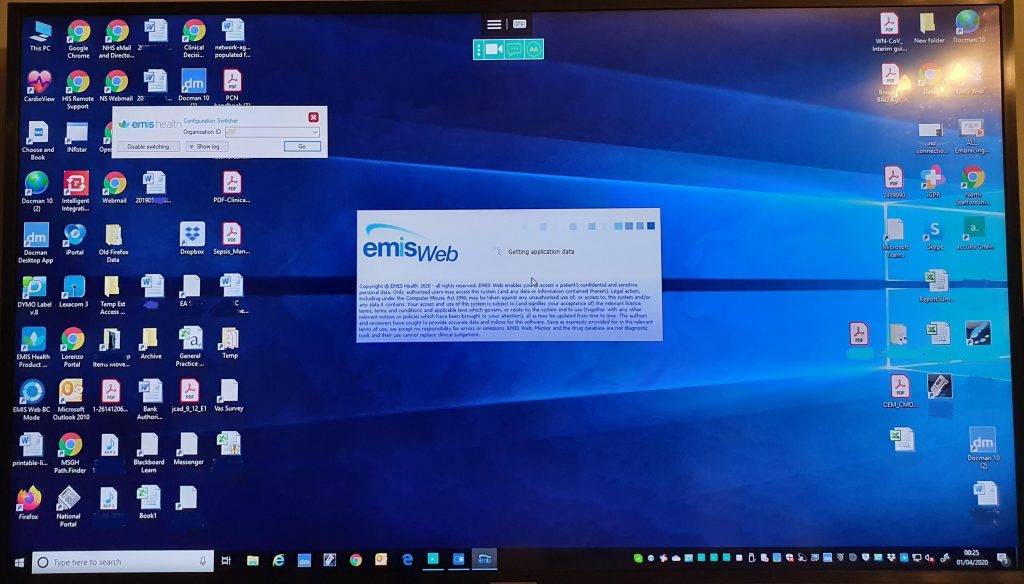
I successfully managed to get CoudPC running on my Android phone connected to my TV. It’s the same as system as a Chromebook so should work fine on there too.
1. Install “Microsoft Remote Desktop” from the Play store
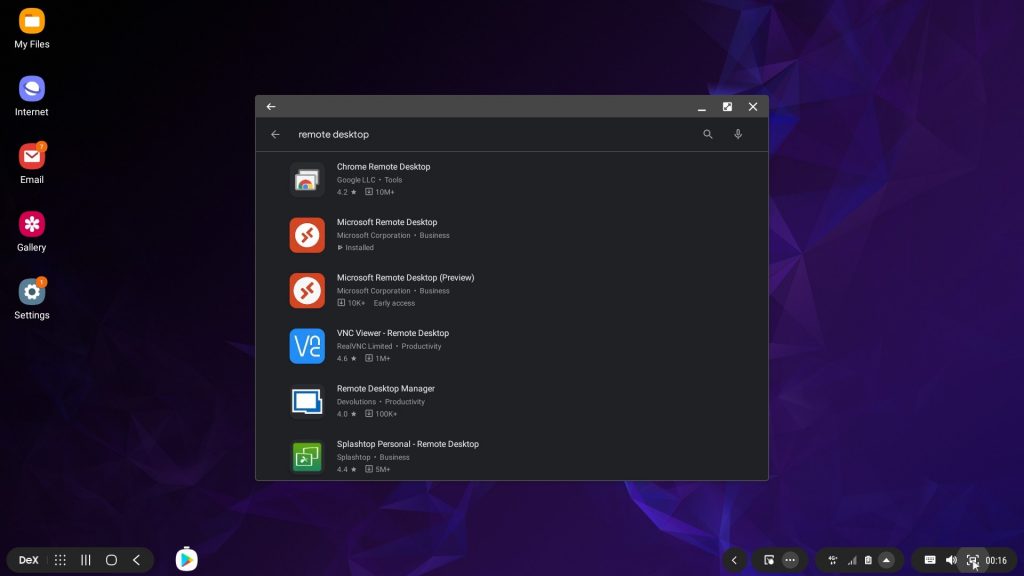
2. Run Microsoft Remote Desktop
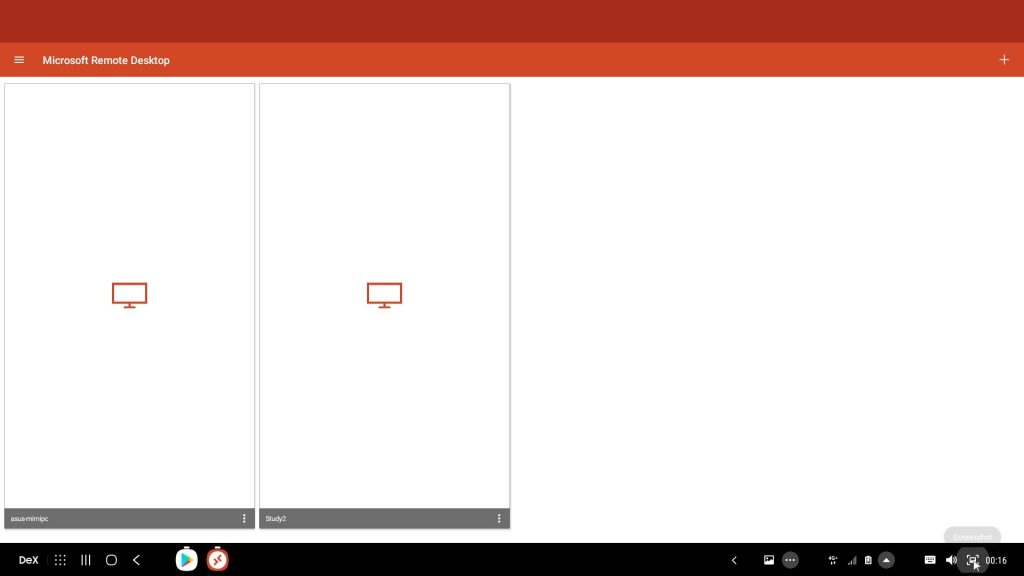
3. Click the three lines menu button at the top left of the screen
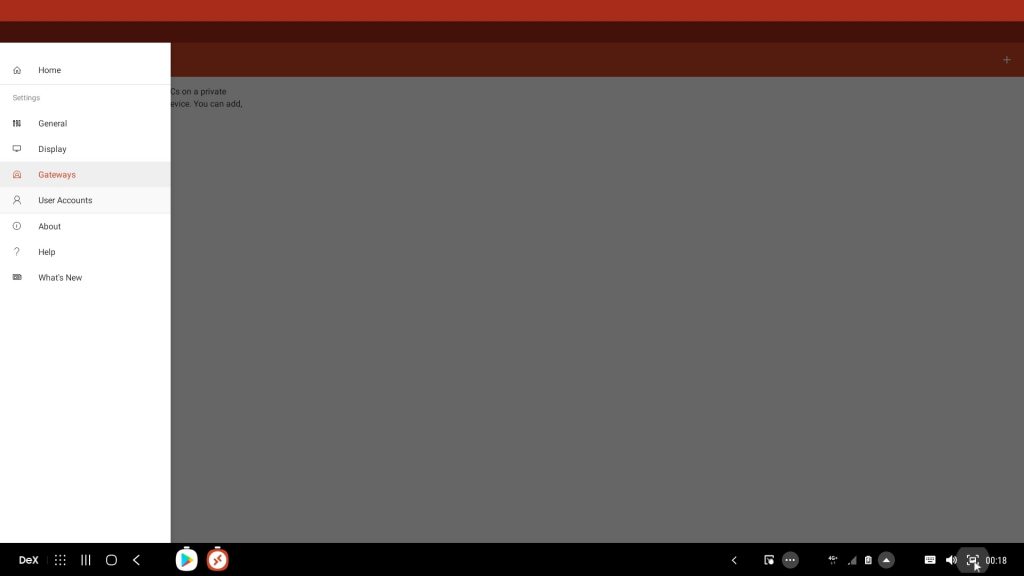
4. Click on ‘Gateways’ and then click the + button at the top right
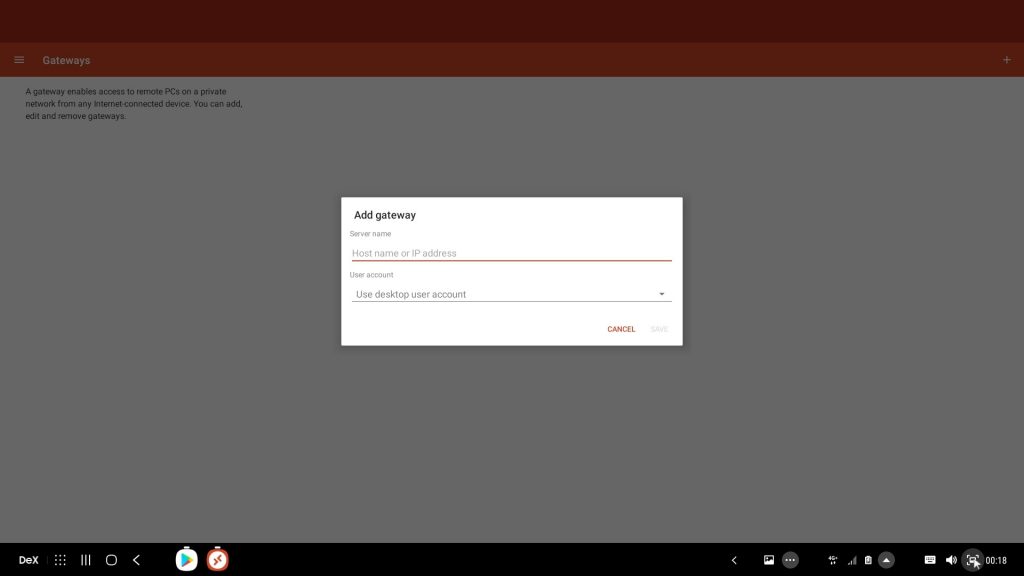
5. In the Add Gateway dialogue box, type cloudpc.northstaffs.nhs.uk. For User account use the drop down to select ‘Add user account’
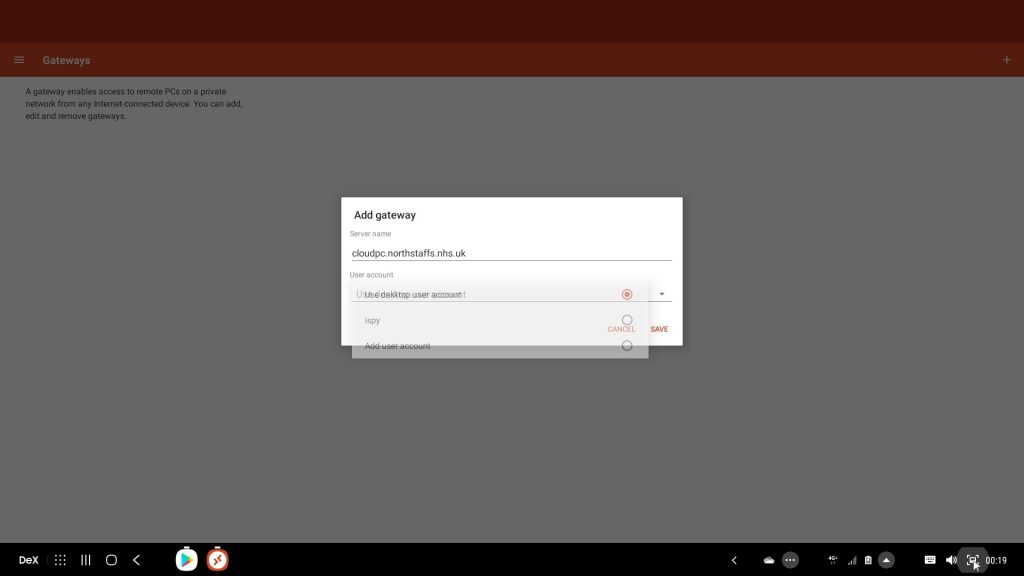
6. In the next dialogue box, under username type ‘ns\xxxxxx’, where xxxxx is your username. Leave the password blank. And click Save.
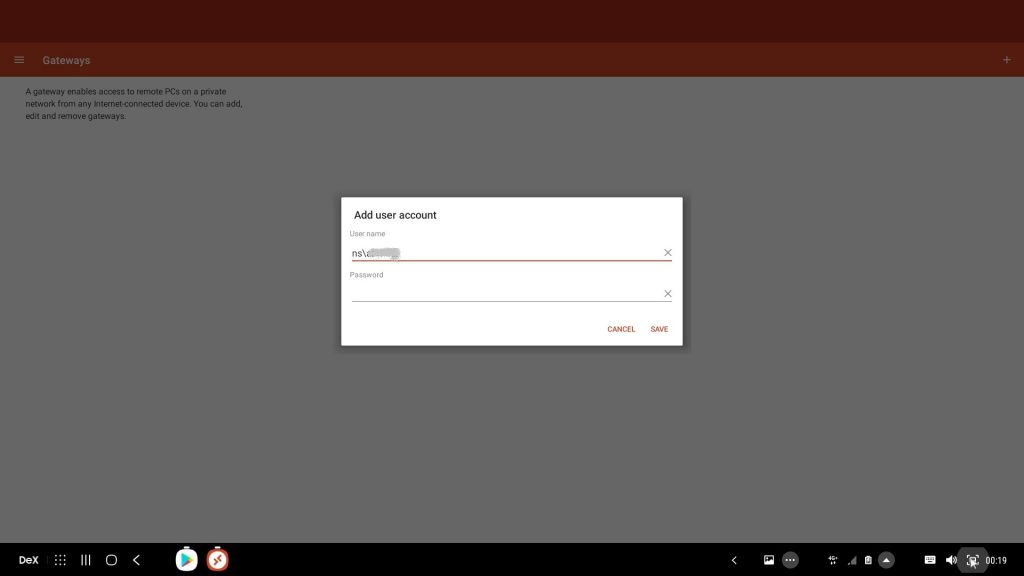
7. Then on the completed Add gateway dialogue box press save.
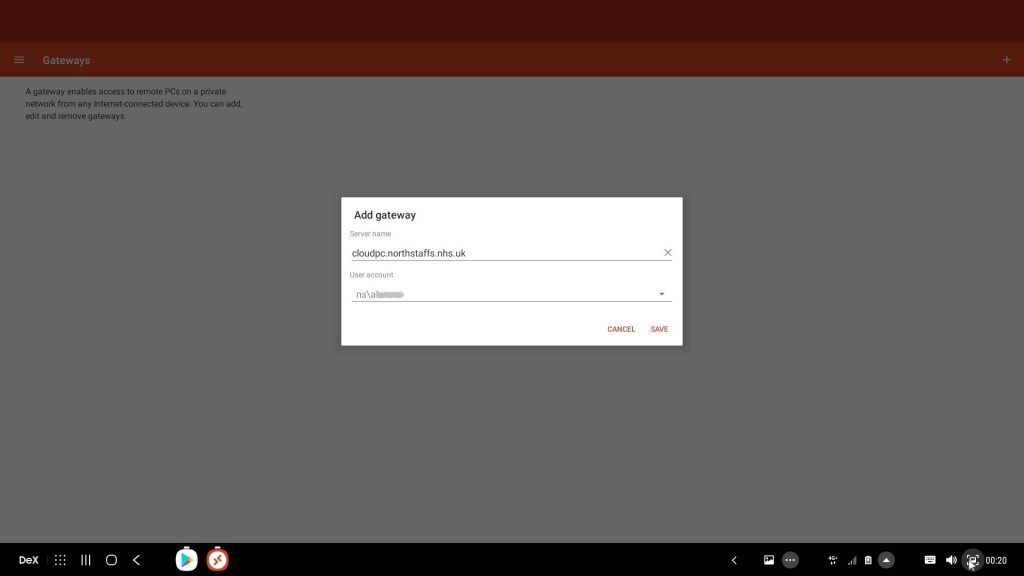
8. Then it will go back to the main screen. Click the + in the top right. Click Desktop . (if you get a page called ‘Desktop detection’ then click add manually).
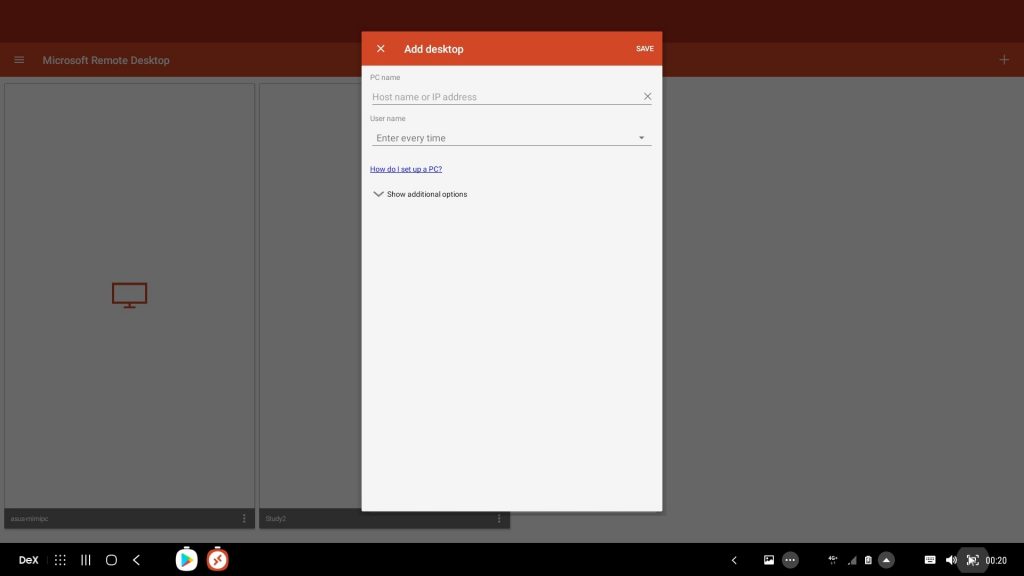
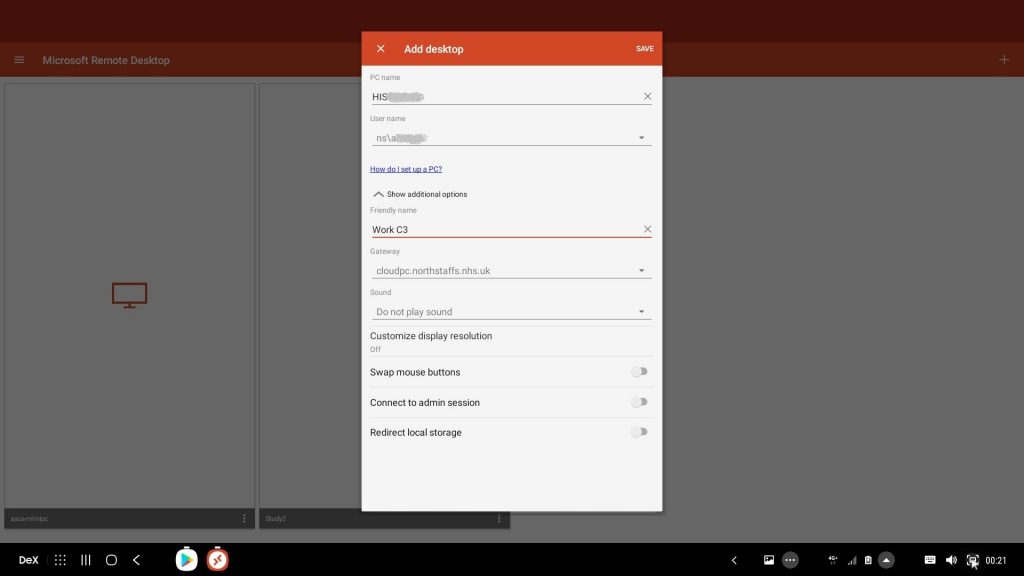
9. Put your the PC number of your work PC in the ‘PC Name’ space. This will be a HISXXXXX or Bxxxxxx number. Under the user nbame space select you username from the drop down menu.
You can use the additional options section to give the settings a friendly name if you like, like I have in the example below (C3 is my consulting room).
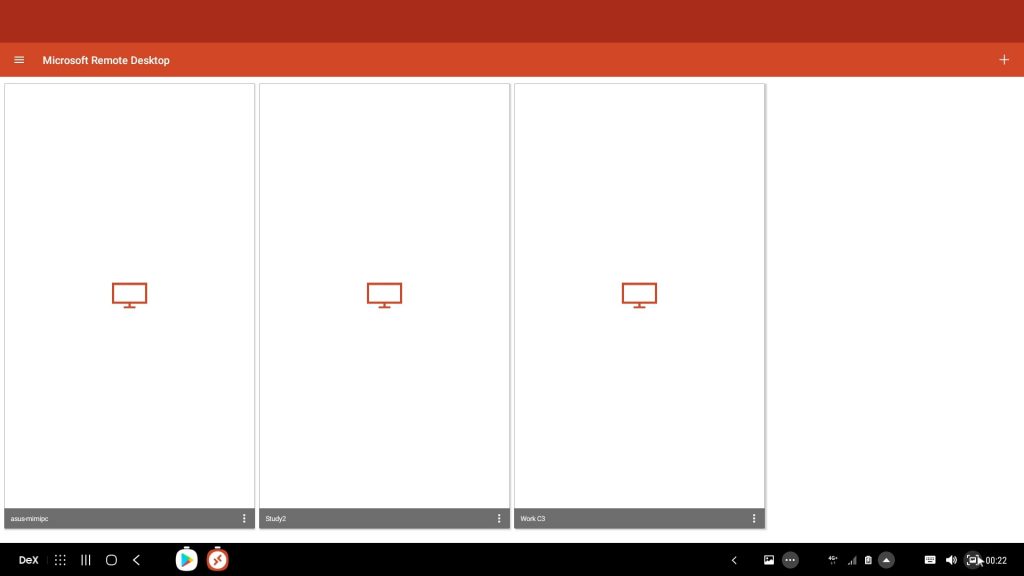
10. Then you will go back to the screen with you existing set up remote PCs. This should be where you start from in future – you should not need to follow steps 1-9 again. At this stage click on the PC you wish to connect to.
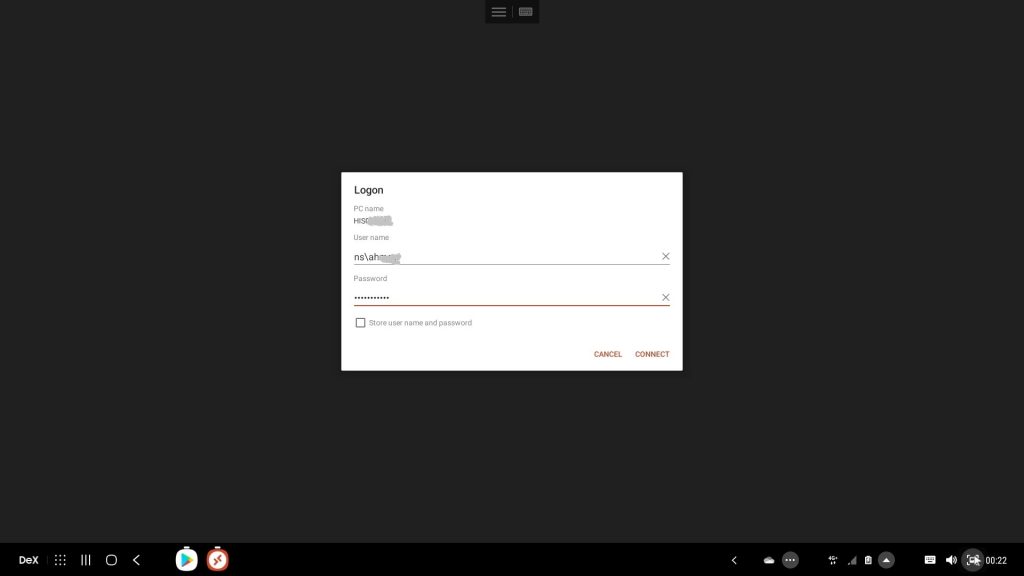
11. You will get a pop-up asking for your password. Enter it and press connect.
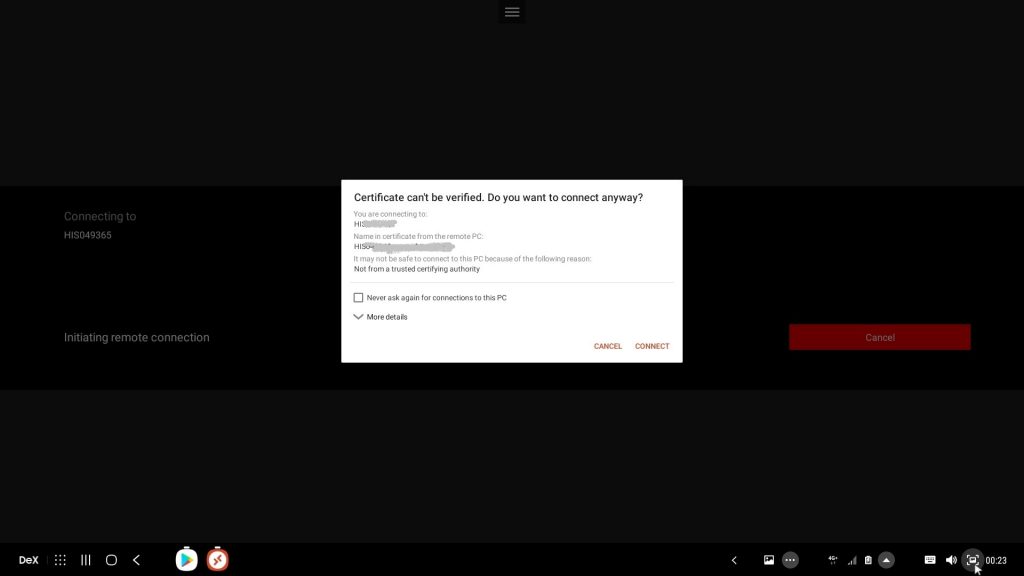
12. If you get a question asking about a certificate, select don’t ask again and click connect.
Finished. Below is a picture of my work computer connected through my phone displaying on my TV. But if you use these instructions on your chromebook or mac you will have it running on your laptop or computer screen.